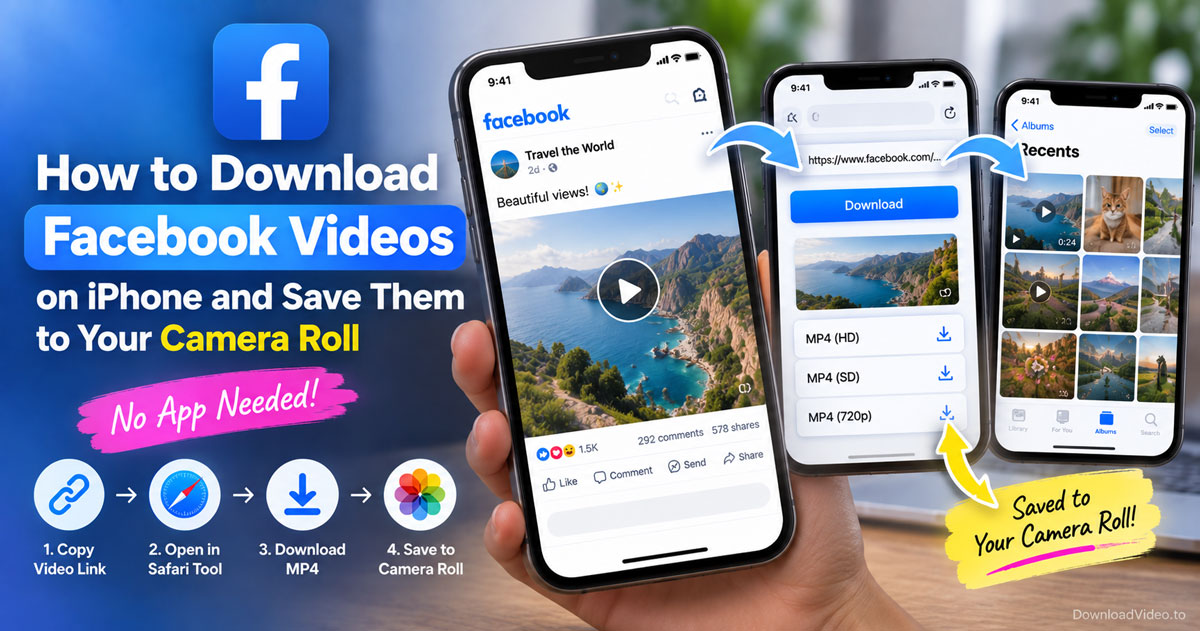
You can download Facebook videos on PC by copying the post link, pasting it into a browser-based Facebook video downloader, and clicking Download. Nothing gets installed, no login is needed, and the MP4 lands in your Downloads folder on Windows 10 and Windows 11 alike.
When a video refuses to save, the cause is almost always the link or the privacy setting rather than your computer. This guide walks through the four clicks, explains which quality to pick, and compares the browser method with desktop software and the right-click trick.
Can you download Facebook videos on PC without installing software?
Yes, you can download Facebook videos on PC without any software, because a browser-based downloader does the work on its own page and your browser saves the finished MP4 like any other file. Chrome, Edge, and Firefox all handle it the same way.
Software-free works because the file already exists. Every public Facebook video streams from a direct file address that the Facebook player hides behind its controls. A downloader reads that address from the link you paste and hands your browser a plain download, which is why nothing has to be installed and why the method does not care whether you run Windows 10, Windows 11, or a Mac. The Facebook website itself offers no download button for other people's videos; its Save video menu item only files the post under Saved in your account. DownloadVideo.to fills that gap from a single page, stores nothing on its servers, and works with videos from profiles, pages, Watch, and public groups, plus Facebook Reels.
How to download Facebook videos on PC in 4 steps
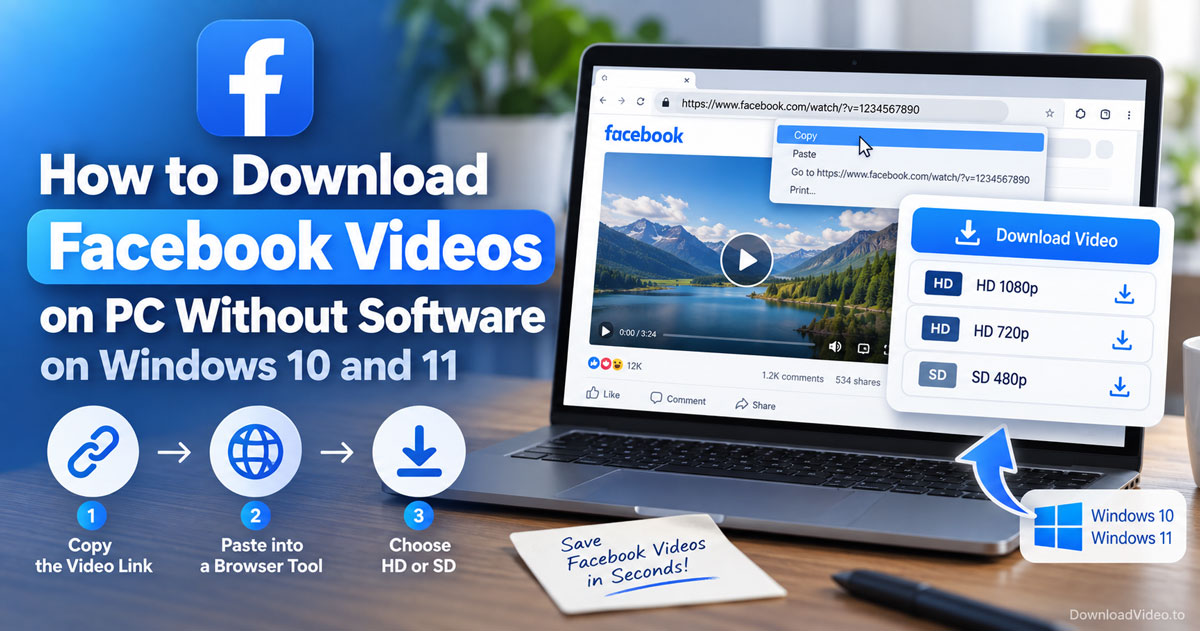
Copying the link, pasting it into the downloader, choosing HD or SD, and letting the browser save the file gets a Facebook video onto your PC in four steps. Each step takes a click or two, so here is the exact sequence.
- Copy the link. Open the post on facebook.com, click the three dots in the top-right corner, and choose Copy link. If the video is playing full screen, right-click the player and pick Copy video URL at current time instead; both links work.
- Paste it into the downloader. Open a new tab, go to the Facebook video downloader page, click the input box, and press Ctrl + V.
- Choose the quality. Click Download. After a moment the page lists the available files, typically HD 1080p and a smaller SD version. Pick the one you want.
- Let the browser save it. Chrome and Edge drop the file straight into your Downloads folder and show it in the download bubble at the top right. Press Ctrl + J to open the full download list, or open File Explorer and go to This PC, then Downloads.
If clicking a quality opens the video in a new tab instead of saving it, right-click the playing video and choose Save video as. That browser prompt lets you pick a folder and a file name, and it happens on some setups where the browser prefers to play MP4 files inline.
Which quality should you pick, HD or SD, when downloading Facebook videos on PC?
HD wins for watching on a monitor and for editing, while SD is better when you plan to email the file, upload it on a slow connection, or keep hundreds of clips on a small drive. The right choice depends on what the video is for.
Quality on a PC download never goes above what the uploader posted. When someone uploads in 1080p, the downloader offers 1080p; when the original was 720p or lower, that is the ceiling. A 2K or 4K option appears only for the small number of videos that were uploaded at that resolution, so do not expect it on every clip. HD files take more space, which matters little on a desktop but adds up if you are archiving a whole page. SD files load faster and play fine on a phone screen. When in doubt, choose HD, because you can always shrink a file later but you can never add detail that was never downloaded.
Those three sections answer the main question. The rest of the guide compares the browser method with the alternatives people ask about, then covers the questions that show up most in search.
Is a browser downloader better than desktop software for Facebook videos on PC?
A browser downloader wins on speed, safety, and zero setup, while desktop software only makes sense if you need to batch hundreds of videos or schedule downloads. For a single video, or a few dozen, the browser is the faster choice.
The table below compares the three ways people save Facebook videos on a Windows PC:
| Method | Install needed | Works on Windows 10 and 11 | Quality |
|---|---|---|---|
| Browser downloader (DownloadVideo.to) | No | Yes, any browser | Up to the original, usually HD 1080p |
| Right-click Save video as on Facebook | No | Yes, but rarely appears | Whatever is playing, often SD |
| Desktop download program | Yes | Depends on the program | Up to the original |
Why the browser method suits Windows 10 and Windows 11
Windows 10 and Windows 11 both ship with Edge, and Chrome is a one-click install, so every PC already has what the browser method needs. There is no installer to trust, no update to run, and no toolbar quietly added to your browser, which is where many "free" desktop downloaders make their money. The browser method also updates itself: when Facebook changes something, the downloader page changes on its side and your PC needs nothing.
When right-click Save video as works and when it does not
Right-click Save video as works only when your browser is playing the raw MP4 file directly, which happens on some download result pages and almost never on facebook.com itself. On Facebook the right-click menu shows player options such as Copy video URL at current time instead of a save option, because the page wraps the video in its own player. Use that copy option to get the link, then paste it into the downloader, and use Save video as only at the end if the browser opens the file rather than saving it.
Frequently asked questions about downloading Facebook videos on PC
Why can't I download a video from Facebook?
The video is usually private, or the link you copied points to a post that contains no video. A friends-only post or a video in a private group is invisible to a downloader; use the private Facebook video downloader for those, which works only for videos your own account can already watch. For public videos, copy the link again from the three dots menu and retry.
What's the best video downloader for Facebook?
The best downloader for a PC is one that needs no install, keeps no copy of your file, and returns the original quality. DownloadVideo.to meets all three: paste the link, click Download, and pick HD or SD in the browser you already use. Judge any tool by those same three points before you trust it.
What is the best Facebook video downloader for PC with Windows 11?
On Windows 11 the browser method is the best fit, because Edge and Chrome both handle the download without extra software and Windows Defender never has to scan an installer. Open the Facebook video downloader in either browser, paste the link, and the file lands in your Downloads folder.
Can I download someone else's Facebook video?
You can download any public video from a link, but the copyright stays with the person who posted it. Keep the copy for personal offline viewing, and ask the creator before you re-upload or edit it. Videos on private posts require permission in practice as well as in principle, since you must be able to see them in your own account.
Does this work on Windows 10 as well as Windows 11?
Yes, the steps are identical on Windows 10, because the whole process happens in the browser rather than in the operating system. Copy the link, paste it, click Download, and open your Downloads folder. Older versions of Windows work too as long as the browser is reasonably current.