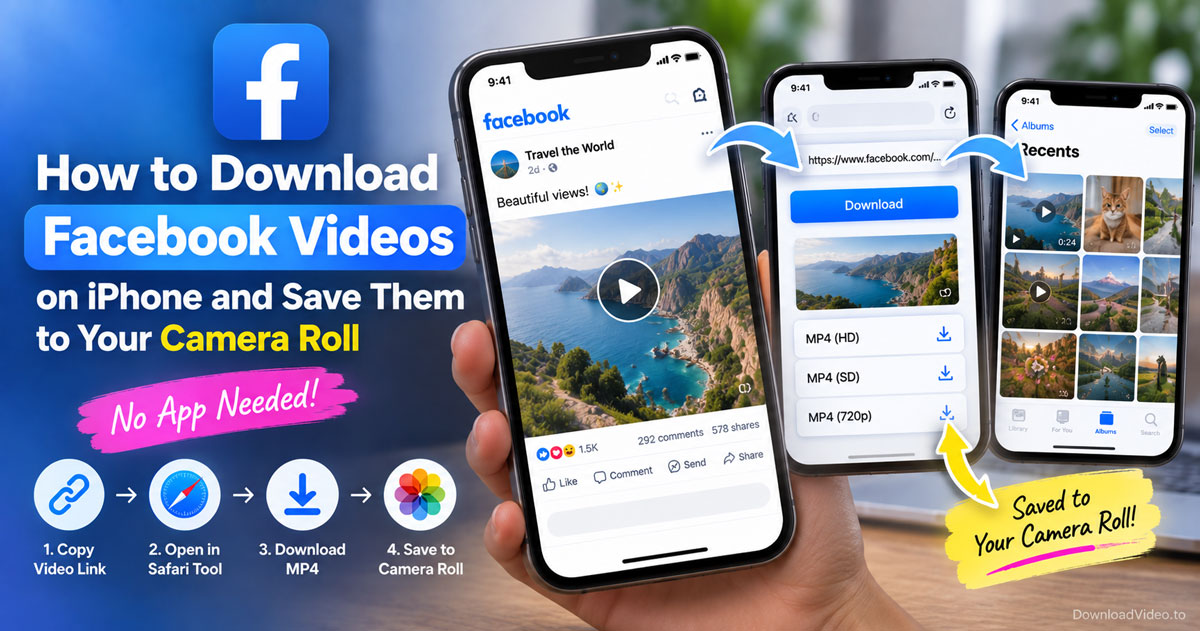
You can download Facebook videos on iPhone by copying the post link, pasting it into a browser-based Facebook video downloader in Safari, and tapping Download. No app, no login, and the whole thing takes about a minute on a normal connection.
The file lands in the Files app first, so to get it into your camera roll you open Files, tap Share, and choose Save Video. Below you will find every tap for both parts, plus the reason Facebook's own Save button never gives you a real file.
Can you download Facebook videos on iPhone without an app?
Yes, you can download Facebook videos on iPhone without installing an app, because Safari saves an MP4 from a web page the same way it saves a PDF or a photo. The Facebook app itself never offers a real download, which is why the browser route exists.
That "no app" answer comes down to how Facebook serves video. The app plays every clip inside its own player and hides the file address, and the Save video option in the post menu only bookmarks the post to your Saved collection. Nothing reaches your iPhone storage. A public video still has a direct file address behind the player, though. A browser-based downloader reads that address from the link you paste, then hands the MP4 to Safari, and Safari's download manager stores it in the Files app. DownloadVideo.to works exactly this way: it runs in the browser, keeps no copy of your file, and asks for no account.
How to download Facebook videos on iPhone in 4 steps
Copying the link, pasting it into the downloader, choosing a quality, and confirming the Safari download gives you an MP4 on your iPhone in four steps. Each step takes one or two taps, so here they are in order.
- Copy the link. Open the video in the Facebook app, tap the three dots in the top-right corner of the post, and choose Copy link. For a Reel, tap the share arrow instead and pick Copy link from the sheet. Videos inside pages and public groups use the same menu.
- Paste it into the downloader. Open Safari, go to the Facebook video downloader page, tap inside the input box, and choose Paste from the bubble that pops up.
- Choose the quality. Tap Download. After a few seconds the page lists the available versions, usually an HD 1080p file and a smaller SD file. The HD option shows up only when the uploader posted the video in HD, and 2K or 4K appears only when the source has it.
- Confirm the download. Safari asks whether you want to download the file. Tap Download, and a small arrow icon appears at the top of the screen. Tap that arrow to watch the progress, or open the Files app and look in the Downloads folder.
The same four steps work for a Facebook Reel and for a clip shared in a public group. When you paste a Reel link, the page recognizes it and returns the vertical file without any cropping. If the paste bubble does not appear, tap and hold inside the box for a second and it will.
How do you save a downloaded Facebook video to your iPhone camera roll?
Open the Files app, go to Downloads, tap the video, tap the Share icon, and choose Save Video. The clip appears in Photos within a second or two. That short trip through Files is the part most guides skip, and it is the reason people think the download failed.
Photos and Files are separate places on an iPhone. Safari always writes downloads to Files, never straight to the camera roll, so the video sits in Downloads until you move it. You can also long-press the file inside Files, pick Share from the menu, and then Save Video; both paths end in the same place. After the save, the video shows up in the Recents album and in the Videos album, and you can play it offline, AirDrop it, or attach it to a message like any clip you recorded yourself. If you would rather keep downloads off iCloud, open Settings, tap Safari, tap Downloads, and choose On My iPhone. Deleting the copy in Files afterwards is safe, because Photos keeps its own copy.
Those three sections cover the download itself. The next part clears up the two things iPhone users mix up most often: Facebook's own Save button and private videos.
What is the difference between saving a video on Facebook and downloading it to your iPhone?
Saving a video on Facebook bookmarks the post inside the app and still needs an internet connection, while downloading it writes a real MP4 to your iPhone that plays offline and can be shared anywhere. The two words sound alike, and the difference decides whether you actually own a copy.
Facebook's Save video button vs a real download
The Save video button in the post menu adds the post to the Saved section of your Facebook profile. It stays on Facebook's servers, it disappears when the uploader deletes the post, and it does nothing inside Photos or Files. A real download through Safari produces a file that survives deletion of the original, plays in airplane mode, and can be trimmed in iMovie or sent through iMessage. Use Save when you only want a reminder to watch later, and use a download when you want the video to stay.
Public vs private Facebook videos on iPhone
A public video downloads from its link alone, because the file address is open to anyone. A video in a private group or on a friends-only post needs a different route: the downloader cannot see it, so you supply the page source through the private Facebook video downloader, which reads the video address from the code Facebook already sent to your logged-in browser. That method only works for videos you can already watch in your own account, so it never opens content that was hidden from you.
Frequently asked questions about downloading Facebook videos on iPhone
How can I download Facebook videos to my iPhone for free?
Copy the video link from the Facebook app, paste it into the free Facebook video downloader in Safari, tap Download, and confirm. DownloadVideo.to charges nothing, sets no daily limit, and never asks you to sign in, so the whole process costs only a few seconds of your time.
How do I download Facebook videos to my iPhone camera roll?
Download the video through Safari first, then open the Files app, find the clip in Downloads, tap Share, and choose Save Video. iOS moves a copy into Photos immediately. Safari cannot save a download directly to the camera roll, so this extra step is always part of the process.
How do I save a FB video to my camera roll?
Use the same Files trick after any browser download: open Files, tap the video, tap Share, tap Save Video. If the video is a Reel, copy its link from the share arrow instead of the three dots, but the save step at the end is identical. Facebook's own Save button will not put anything in the camera roll.
How do I download Facebook videos to my phone storage?
On an iPhone the storage location is the Files app. Safari places every download under Downloads in On My iPhone or iCloud Drive, depending on the setting under Settings, Safari, Downloads. Choose On My iPhone if you want the video kept locally and off iCloud, then move it to Photos whenever you like.