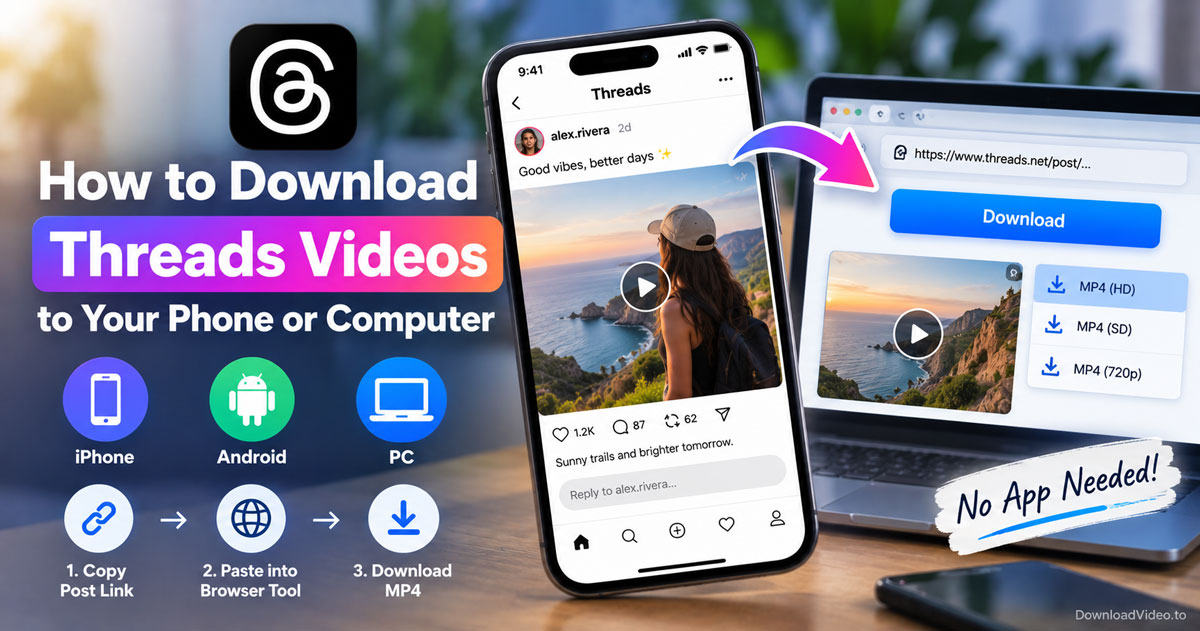
You can download Threads videos by copying the post link from the Share arrow, pasting it into a browser downloader and pressing Download. The MP4 keeps the quality the creator posted, and the process takes under a minute on iPhone, Android or a computer.
The Threads app itself creates no video file. Its Save option bookmarks the post inside the app, while a downloaded MP4 stays in your Files app or Downloads folder for as long as you want it.
The method works for public posts only and also picks up photos and voice clips in the same post. This guide covers the steps, the device details and the links that fail.
Can you download Threads videos without an app?
Yes, you can download Threads videos without an app, because a browser downloader only needs the public post link, it never asks for your Threads login, and it returns the original MP4 that Threads serves to its own app.
That last point is what makes a browser downloader worth using for Threads videos, so it deserves a closer look. Threads streams every video from Meta's servers as a normal MP4 file. When you paste a post link into the Threads video downloader, the tool reads the post, finds that file and offers it to you as a direct download. Nothing gets re-encoded, and Threads adds no watermark, so the clip you save looks exactly like the one in your feed.
Two conditions apply. The post must be public, since private profiles only serve content to approved followers, and the link must point to a single post rather than a profile. Both are easy to check before you start.
How to download Threads videos in 3 steps
Copying the post link, pasting it into the browser tool and pressing Download saves a Threads video as an MP4 in three steps, with no account, no extension and no installed app.
The three steps below are the same on every device, and the only part that changes is where you find the link.
Step 1: Copy the post link. In the Threads app, open the post that contains the video and tap the Share arrow under it, then choose Copy link. On threads.com in a desktop browser, open the post and copy the address from the address bar. Either way, the link should look like https://www.threads.com/@user/post/.... A link that ends at the username is a profile link and will be rejected.
Step 2: Paste the link and press Download. Open DownloadVideo.to in Safari, Chrome or any other browser, tap inside the box, choose Paste and press Download. A public post loads in a few seconds and shows a card for each item it contains.
Step 3: Save the video. Press Download on the video card. If the post holds several clips or photos, a Download all button packs everything into one ZIP so you only save once.
After the third step, the browser handles the file the way it handles any download. Where that file lands depends on your device, which the next section covers.
How to download Threads videos on iPhone, Android and PC
There are three device paths for a Threads video download: Safari on iPhone saves to the Files app, Chrome on Android saves to the Downloads folder, and a desktop browser saves to its default Downloads directory.
Each path has one small detail worth knowing, so here is the Threads video download flow per device.
- iPhone: Safari shows a small download arrow in the address bar once the MP4 starts saving. Open the Files app, go to Downloads, tap and hold the video, choose Share and then Save Video to move it into Photos. Chrome on iPhone works too, but Safari is the shortest route to the camera roll.
- Android: Chrome drops the MP4 into Downloads and usually shows it in the Gallery or Google Photos automatically. If it does not appear there, open the Files app and look under Downloads.
- PC or Mac: the browser saves the MP4 to your Downloads folder. Right-click the Download button and choose Save link as if you want to pick a different folder or rename the file before saving.
The search for "how to download Threads videos on iPhone" is common because iOS hides downloads in Files rather than Photos. The two extra taps above solve that, and no Shortcut or third-party app is required.
That covers the main download flow. The rest of this guide looks at what else a Threads post can contain and why some links refuse to load.
Video vs photo vs voice post: what can you save from Threads?
A Threads post can hold a video, photos, a voice clip or a mix of all three, and the browser tool lists each item separately: video as MP4, photo as JPG or PNG, audio as MP3.
The table below shows what each Threads content type turns into after download, and what to expect from its quality.
| Post content | Downloaded as | Notes |
|---|---|---|
| Video | MP4 | Same resolution the creator posted, usually 720p or 1080p |
| Photo or carousel | JPG or PNG | Original size, with a ZIP option for several photos |
| Voice post | MP3 | Audio only, also available for the sound of any video |
| Animated GIF | Short MP4 | Threads serves GIFs as video clips |
What quality does a Threads video download keep?
A Threads video download keeps the quality the creator uploaded, because the tool saves the file Threads already serves rather than re-encoding it. Most Threads videos play at 720p or 1080p, and the result marks those as HD. No tool can turn a Threads post into a real 4K file, so treat any 4K promise as marketing rather than fact.
Why does a Threads profile link fail?
A Threads profile link fails because the downloader needs one specific post to read, and a profile address such as threads.com/@user names an account rather than a post. Copy the link again from the Share arrow on the post itself. If a post loads but its Download button stops working after a while, the direct file link has expired, so paste the post link once more to refresh it.
Frequently asked questions
Can you save videos on the Threads app?
The Threads app offers a Save option that bookmarks the post inside the app, but it does not write a video file to your camera roll. To keep an actual MP4, copy the post link and run it through a browser downloader such as DownloadVideo.to.
How to download videos that are not downloadable?
Copy the post link from the Share arrow and paste it into the browser tool, which reads the public MP4 directly instead of relying on a download button that Threads never provides. Private posts remain out of reach, since Threads only serves them to approved followers.
Is it free to download Threads?
Yes. The Threads app is free on the App Store and Google Play, and saving a Threads video through DownloadVideo.to is also free, with no limit, no account and nothing stored on the server.
How do I download videos to watch offline?
Save the Threads video as an MP4 using the three steps above, then move it into Photos on iPhone or leave it in Downloads on Android. A saved MP4 plays in any video player without an internet connection.
Is there a Threads download video shortcut for iPhone?
Some people build an iOS Shortcut for Threads, but it needs manual setup and tends to break when Threads changes its site. Opening the browser tool in Safari, pasting the link and saving the file to Photos gets the same result with nothing to maintain.
Can I download Threads photos too?
Yes. Paste the same post link and the tool lists every photo at its original size next to any video. Use Download all to get a carousel as one ZIP file.