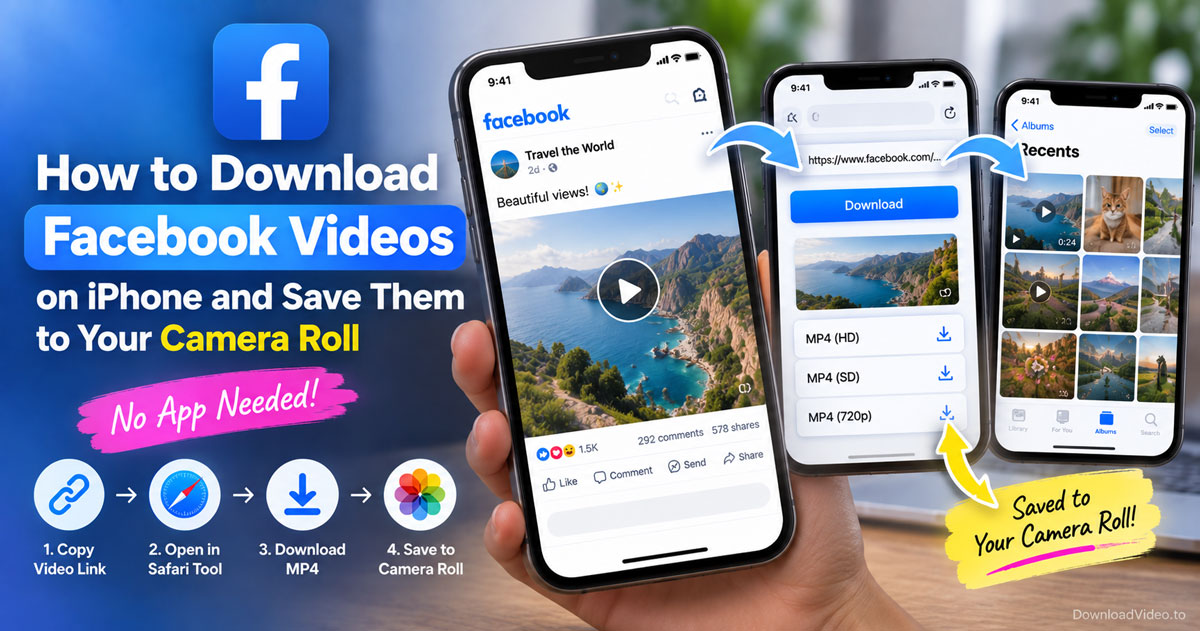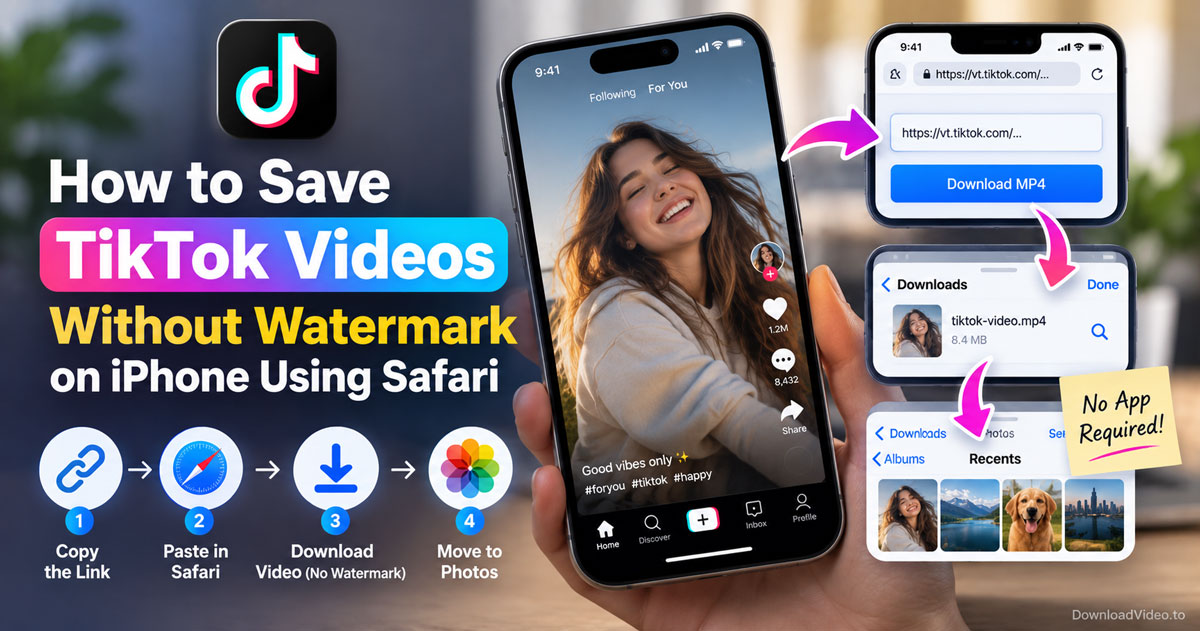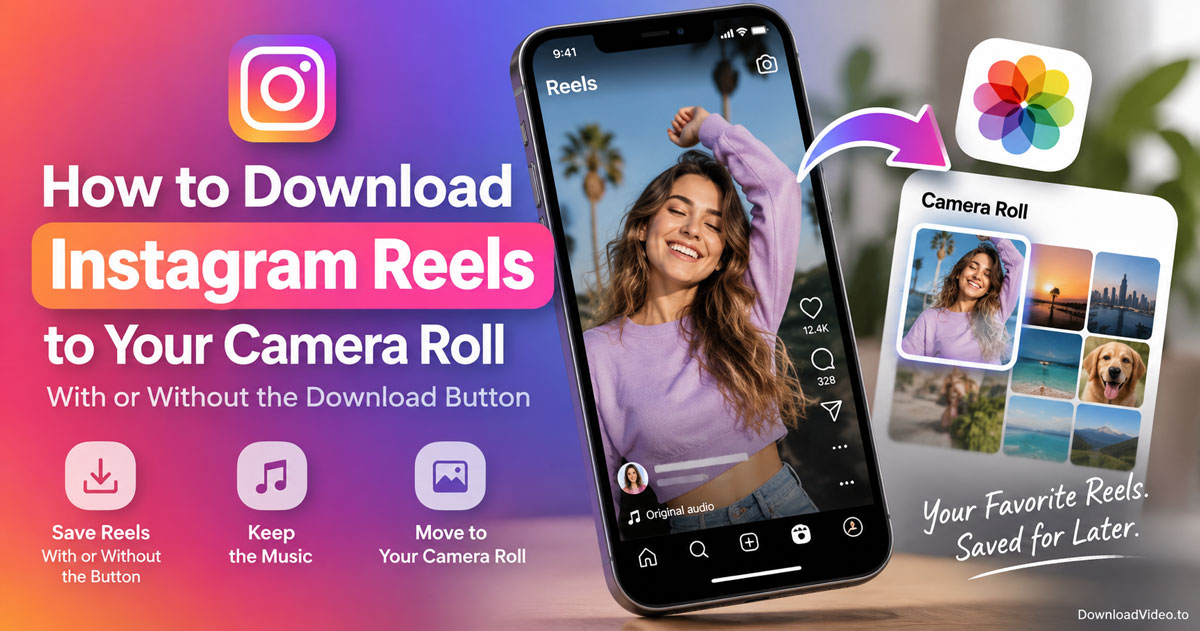
You can download Instagram Reels by tapping the share icon on the Reel, choosing Copy link, pasting that link into a browser-based Instagram downloader, and tapping Download. It works whether or not the creator switched on Instagram's download option, and it needs no app and no login.
The saved Reel goes to the Files app on iPhone or the Downloads folder on Android, and one more tap moves it into your camera roll. This guide covers the four steps, the camera roll part, the difference between Instagram's Save and a real download, and why your own Reels sometimes come back without music.
Can you download Instagram Reels that don't have a download option?
Yes, you can download Instagram Reels that show no download option, because that button is a creator setting rather than a technical limit, and the Reel's public link still leads to the video file. A browser tool fetches the file from that link.
The missing download option confuses people because Instagram used to show it more often. Today a creator decides, at posting time, whether to allow people to download the Reel, and when they leave it off the share sheet shows nothing beyond Save, Copy link, and the usual sharing targets. The link, though, is always there for a public account. Paste it into DownloadVideo.to and the page reads the video address that Instagram serves to every viewer, then returns the MP4 for your browser to save. Nothing is installed, no Instagram password is typed anywhere, and the file is not kept on the site. Reels from private accounts are the one exception: their links only resolve for approved followers, so a downloader cannot reach them.
How to download Instagram Reels in 4 steps
Copying the Reel link, pasting it into the downloader, tapping Download, and saving the file gives you an MP4 copy of the Reel in four steps. Each one takes a tap or two, and the order is the same on iPhone, Android, and desktop.
- Copy the Reel link. Open the Reel, tap the paper plane icon at the bottom right, and choose Copy link. On a computer, open the Reel in a browser and copy the address from the bar; it looks like instagram.com/reel/ followed by a code.
- Paste it into the downloader. Open the Instagram downloader page in your browser, tap the input box, and choose Paste.
- Tap Download and choose the quality. The page lists the available versions after a few seconds, usually 1080p when the creator uploaded in HD and a smaller version below it. Tap the one you want.
- Save the file. On iPhone, Safari asks to confirm the download; tap Download and the file goes to Files. On Android, Chrome saves it to Downloads and shows a notification. On a PC, the file lands in the Downloads folder.
Video Reels are not the only thing the same page handles. Paste a link to a photo post, a carousel, or a Story from a public account and it returns those files in the same way, which is handy when a creator mixes Reels with photo dumps.
How do you get a downloaded Reel into your camera roll?
On iPhone, open the Files app, find the Reel under Downloads, tap Share, and choose Save Video; on Android, the Gallery or Google Photos app picks the file up from Downloads on its own. Both routes end with the Reel sitting next to your own videos.
The camera roll step trips up iPhone users most, because Safari never writes a download straight into Photos. The file waits in Files until you save it, and after Save Video it shows up in the Recents album as a normal vertical video. Android is simpler: most Gallery apps scan the Downloads folder automatically, and if yours does not, open the Files app, long-press the Reel, and pick Move to with a folder inside DCIM. Once the Reel is in the camera roll you can trim it, add it to an album, or repost it to your own Story like any clip you shot yourself.
Those three sections answer how to download a Reel. The next part clears up two things people confuse: Instagram's Save option and the silent copies you get of your own Reels.
What is the difference between saving a Reel on Instagram and downloading it?
Saving a Reel on Instagram bookmarks it inside the app, where it needs a connection and vanishes if the creator deletes it, while downloading writes an MP4 to your phone that plays offline and keeps its sound. The difference decides whether you really have a copy.
The table below compares the three ways people keep a Reel:
| Way to keep a Reel | Needs creator permission | Offline file | Music kept |
|---|---|---|---|
| Save inside Instagram | No | No | Plays online only |
| Instagram's own Download button | Yes | Yes, with a username stamp | Often removed for licensed tracks |
| Browser downloader from the link | No | Yes | Yes, as it plays publicly |
Instagram's Save option vs an MP4 on your phone
Save on Instagram adds the Reel to your Saved collection, which is a list of links rather than a folder of files. You can build collections and browse them later, but the Reel plays only while you are online and disappears from the list if the creator removes it or goes private. An MP4 downloaded from the link is yours: it plays in airplane mode, survives the original being deleted, and can be dropped into an editor. Use Save for inspiration you want to revisit and a download for anything you want to keep.
Your own Reels with music vs other people's Reels
Downloading your own Reel through Instagram's built-in tool often strips the music when the track came from Instagram's licensed library, which is why people search for a way to download their Reels with the music intact. A link-based downloader saves the Reel as it plays publicly, sound included, so copy the link from your own profile and paste it the same way you would for anyone else's Reel. The same applies to other people's Reels: the audio you hear in the app is the audio in the file.
Frequently asked questions about downloading Instagram Reels
How can I download Instagram Reels videos?
Tap the share icon on the Reel, choose Copy link, paste the link into the Instagram downloader, and tap Download. The MP4 saves through your browser in the highest quality the creator uploaded, usually 1080p. No app and no login are involved.
How to download Instagram Reels that don't have download options?
Copy the Reel link from the share sheet and paste it into a browser downloader. The download option in Instagram is a setting the creator turns on or off, and a public Reel's link works regardless of that setting. Reels on private accounts are the exception, because their links only open for approved followers.
How can I download a Reel to my camera roll?
Download the Reel through Safari or Chrome first, then move it. On iPhone, open Files, tap the Reel in Downloads, tap Share, and choose Save Video. On Android, the Gallery app normally shows files from Downloads on its own. The Reel then sits in your camera roll like any other video.
Why can't I save Reels to my camera roll?
Instagram's own download button appears only when the creator allowed downloads, and even then it may skip Reels with licensed music. When the button is missing, copy the link and use a browser downloader instead, then save the file to Photos from Files. If a browser download itself fails, the account is probably private or the link points to a profile rather than a Reel.
Is there an app to download Reels?
No app is needed. A browser-based downloader runs on any phone or computer without installing anything, which avoids the ad-heavy apps that fill the app stores. Open the downloader page, paste the link, and tap Download; the result is the same MP4 an app would give you, without the permissions an app would ask for.